changelog · 26 November 2026
de:volt in 3D: build, wire and run your breadboard in three dimensions
Switch any circuit to 3D and keep working: place parts, draw wires, bend legs, turn knobs and press buttons on real-size models while the simulation keeps running.
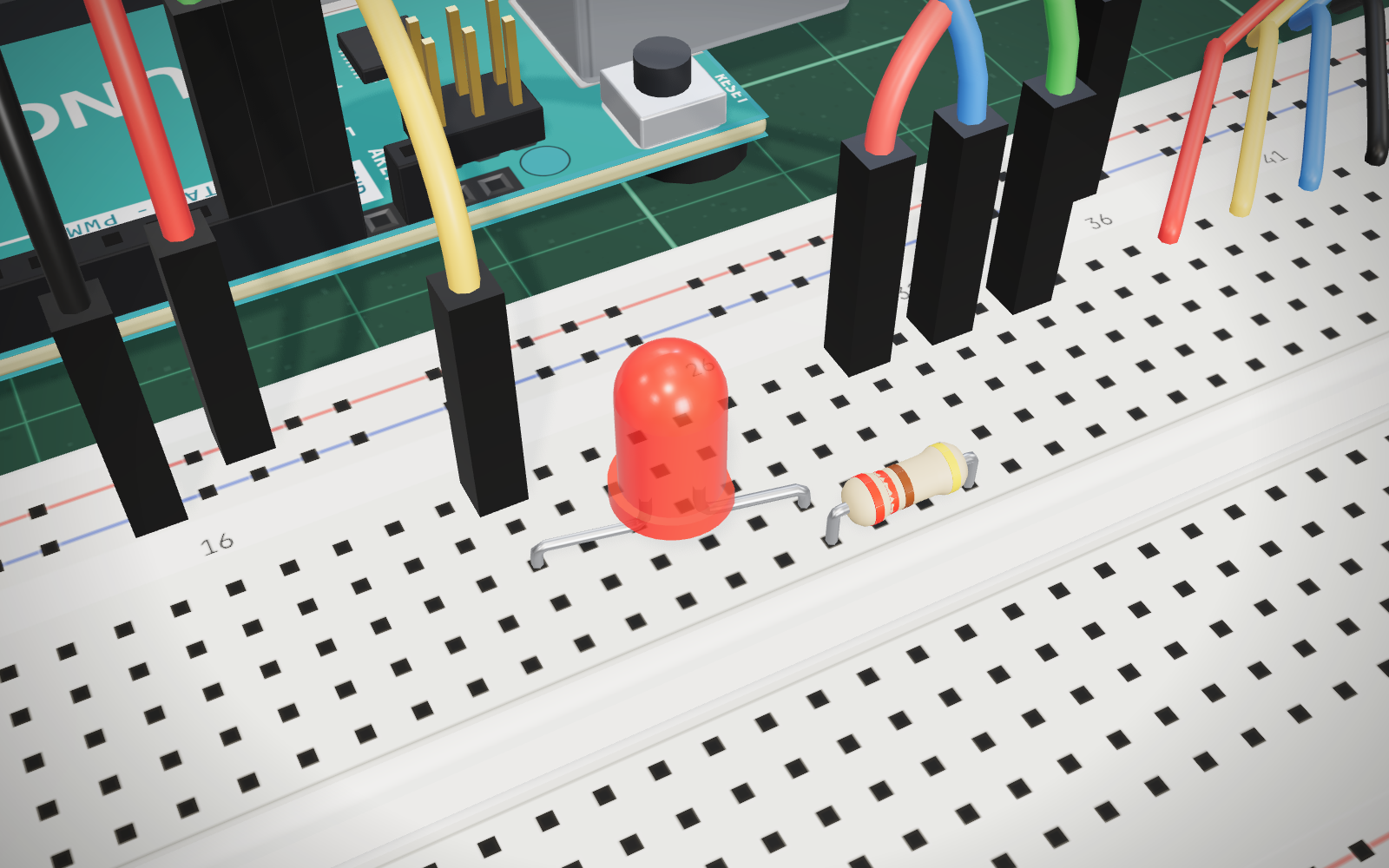
Every circuit in de:volt can now be seen, and built, in 3D. Press 3D at the top-left of the workspace (or choose View > 3D view) and your breadboard stands up on a workbench. Press 2D to go back. The simulation never stops when you switch, and de:volt remembers which view you like the next time you open it.
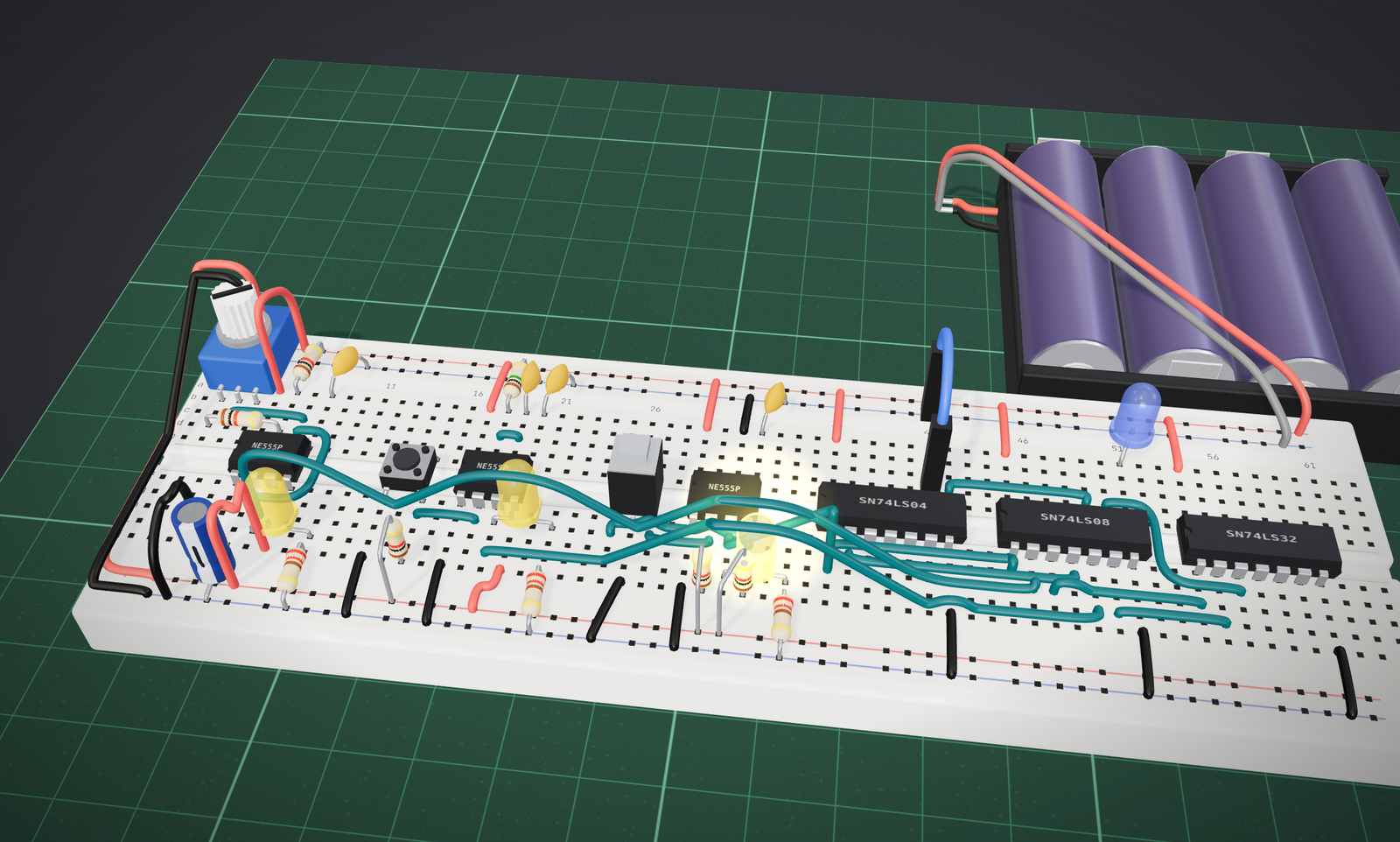
This is not a picture of your circuit. It is your circuit, running live, and you can edit it.
Look around
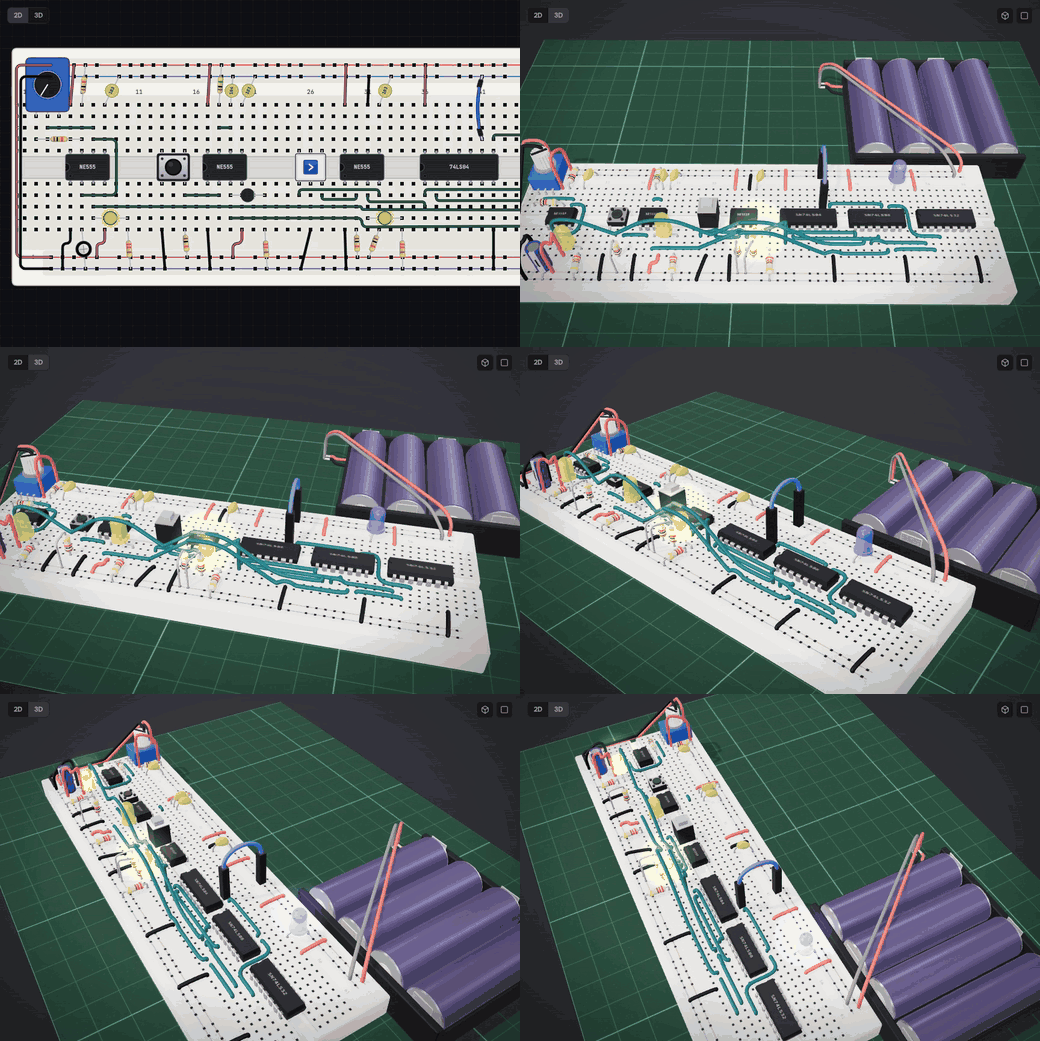
Drag to orbit, right-drag to pan and scroll to zoom. Two buttons in the corner, Angled view and Top view, snap the camera back to a tidy angle or straight down. Hover over any hole or pin and de:volt shows its voltage, just as it does in 2D.
LEDs glow with the current actually flowing through them. Seven-segment displays, the character LCD, the LED matrix and the boards' own LEDs and screens all show what the simulation is doing right now. Motor, servo and stepper shafts turn as the simulation drives them.
Build in 3D
Everything you do in 2D works in 3D too:
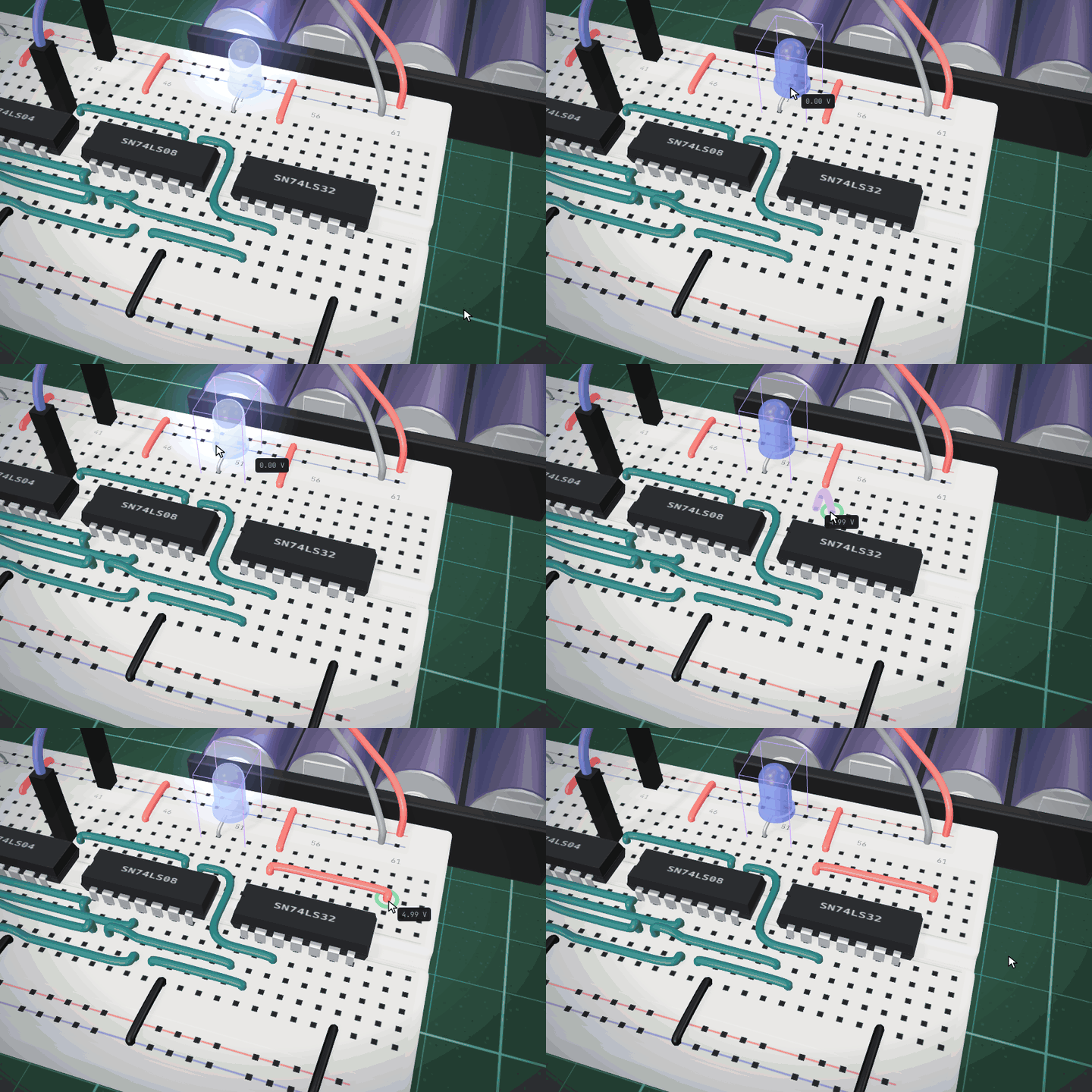
- Place parts. Drag a part from the parts list onto the board. A green or red preview shows where it will land and whether it fits.
- Move parts. Drag a part and it snaps into the breadboard holes.
- Draw wires. Click a hole or a pin to start a wire and another to finish it. Click the desk on the way to add a bend, or hold Alt to keep the wire exactly as you drew it.
- Bend legs. Drag an LED's or resistor's leg to another hole.
- Move jumpers. Pick up a jumper's plug and push it into a different hole or pin.
- Select and edit. Click a part to select it and edit it in the Inspector, Shift-drag to box-select, and right-click (or Ctrl-click on a Mac) for the same menu as 2D. Text labels can be placed and edited in 3D as well.
Every drag is a single undo step, so Ctrl+Z (Cmd+Z) puts things back exactly as they were.
Play with it
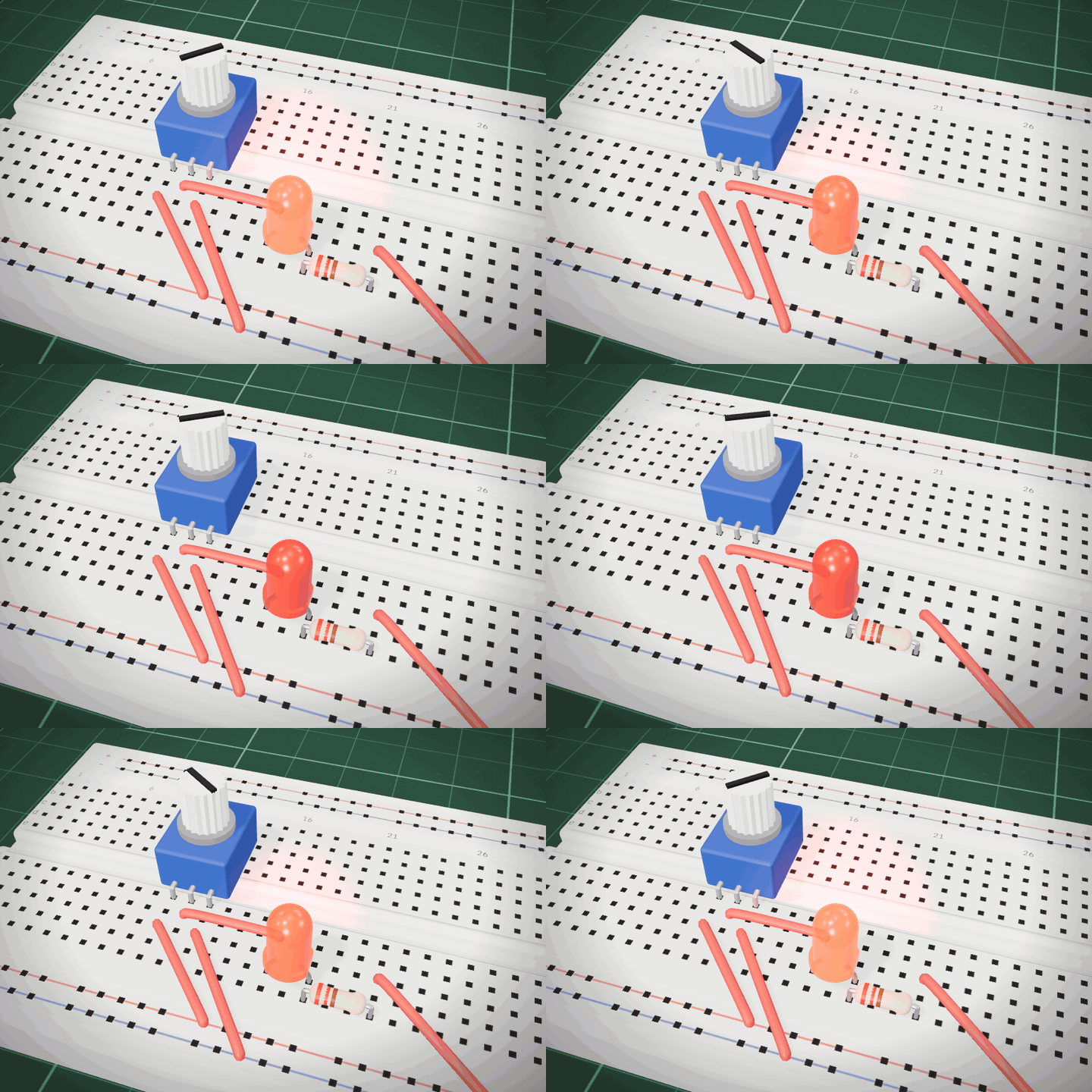
Push buttons, slide switches and changeover switches work when you click them. A momentary push button stays pressed for as long as you hold it. Turn a potentiometer by dragging its knob around.
 Flip DIP switch rockers, plug and unplug USB cables, press an Arduino's reset button, or hold down the micro:bit's A and B buttons and watch the caps go down.
Wires that behave like wires
Wires lie flat on the board, climb over the chips and capacitors they cross (never through them), and ride on top of wires you laid earlier. Jumpers are drawn as Dupont leads, with a plug housing standing in each hole and a curved lead between them. Flat wires can still run underneath an Arduino Nano or Raspberry Pi Pico sitting up on its headers, the same rule as on a real breadboard.
Real parts, at real size
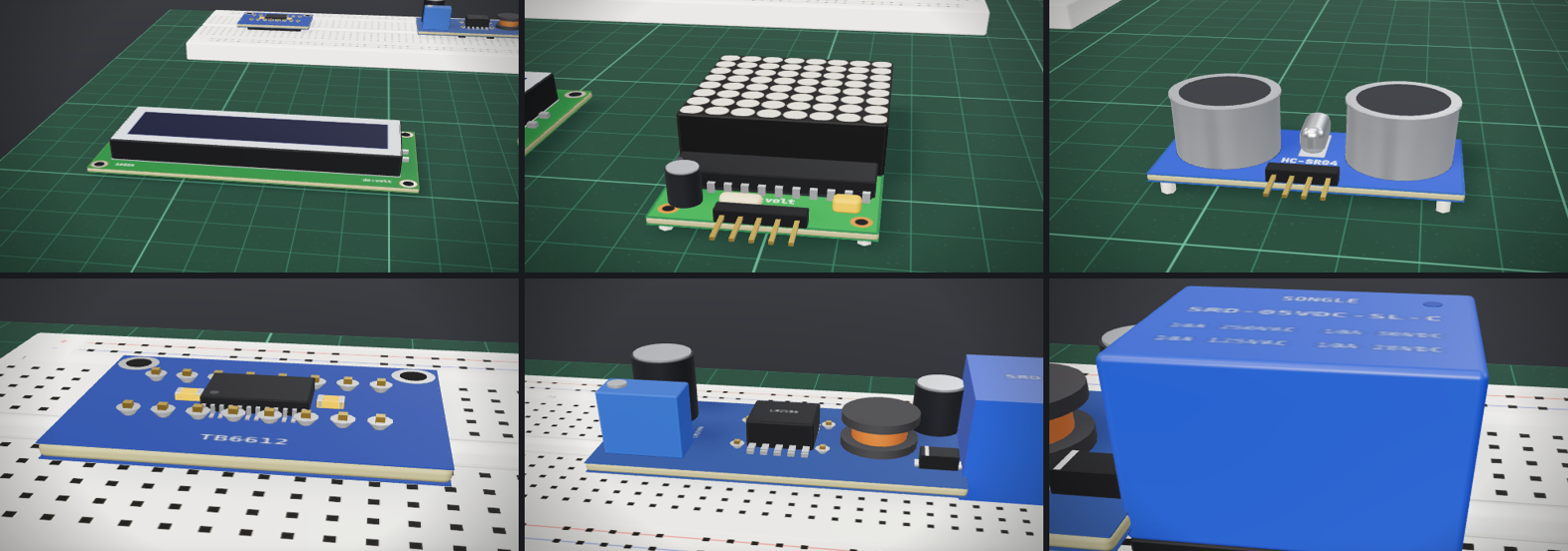
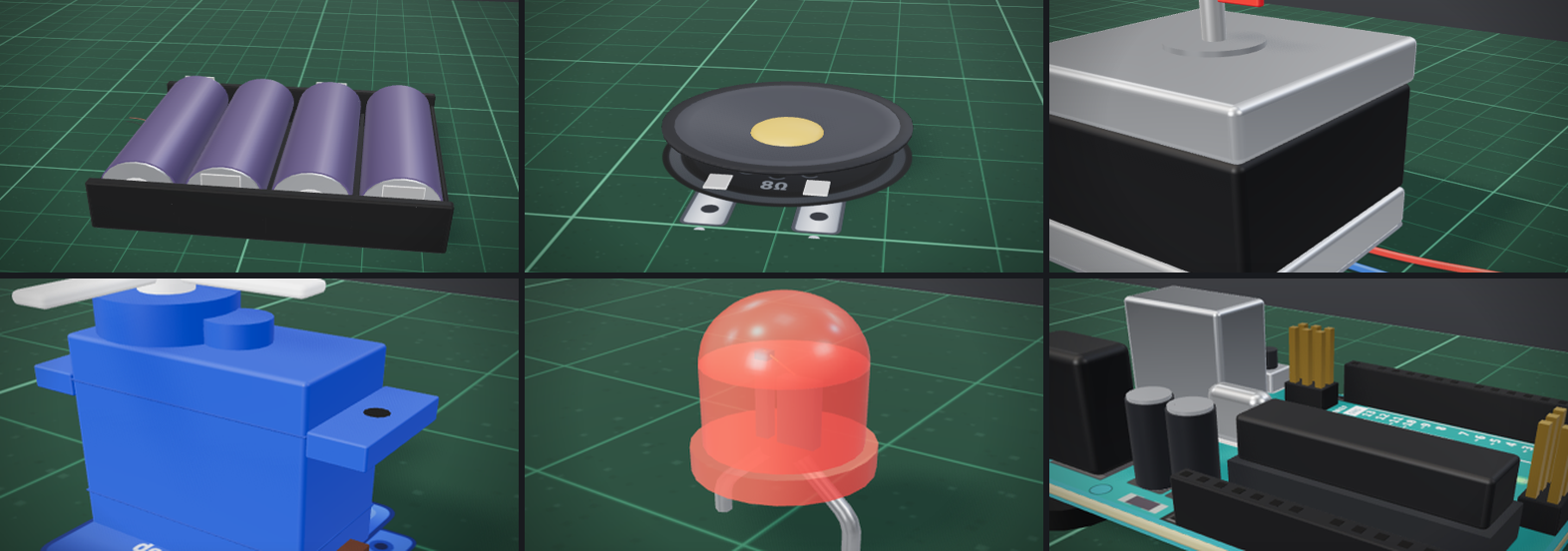
Every part in the catalog has a 3D model, built from the same values you set in the Inspector:
- Resistors carry their real colour bands, and an electrolytic capacitor grows with its capacitance, with its stripe on the negative lead.
- Chips are printed with their part number, and a potentiometer's knob turns with its wiper.
- Boards like the Arduino Uno, Nano, Pico and micro:bit have their headers, jacks, chips and buttons, with their live displays on top.
- Modules like the LCD, buck converter and motor driver are built part by part at their datasheet sizes.
Read more about why sizes matter in Parts at real size.
Many of the component models, including the chips, LEDs, transistors, regulators, capacitors and switches, are adapted from the KiCad library under CC-BY-SA 4.0.
All of it sits on a green cutting mat with a 1 cm grid, under soft workshop lighting.
Light enough for big circuits
The 3D view only redraws when something on the board changes, so it stays smooth even on very large builds. A 266-part, 918-wire breadboard computer opens and orbits in 3D in a regular browser, with no download and no plug-in.
Good to know
- The 3D view is on every plan, including Free.
- The multimeter's probes still live in the 2D view for now.
- The 3D view needs a browser with WebGL, which every current desktop and mobile browser has.
Ready to try it? Our 3D tour walks through building a small circuit from scratch in 3D. Or just open any circuit at sim.devoltapp.com and press 3D.